What stands out in ScreenToGif
The frame editor is the reason to reach for ScreenToGif for a short Windows tutorial. It lets you keep the instant a menu opens, discard the following seconds of cursor wandering, and hold the final state long enough to read. That is especially helpful when the reader needs to recognize a control by its label. A full desktop recording can make the same label too small to read inside a help article.
Windows desktop. The two practice GIFs can also be viewed in a browser.
Walkthrough
- Choose a task with a visible beginning and end. For a sort-order instruction, that might be a short file list displayed in name order followed by the same list in date order. Use dummy filenames and clear pop-up notifications before recording. Set the recorder bounds to include the menu and the part of the list that changes.
- Record the action once at an ordinary pace. Pause with the menu open and again when the new order appears. These pauses give you clean frames to choose from. Stop once the result is visible, then look through the frame strip in the editor.
- Keep a stable frame before the click and a stable frame after it. Select and remove a continuous stretch of redundant frames between them. Use the frame delay control on the final selected frame to give the viewer reading time. Preview the transition after each deletion so a menu never seems to appear without an explanation.
- Export a GIF and play it at the width it will occupy in your actual article. Watch a complete loop without the editor controls. Check whether the cursor obscures the active menu item and whether the return from the last frame to the first could be mistaken for another action.
Compare two edits in 3.15 seconds
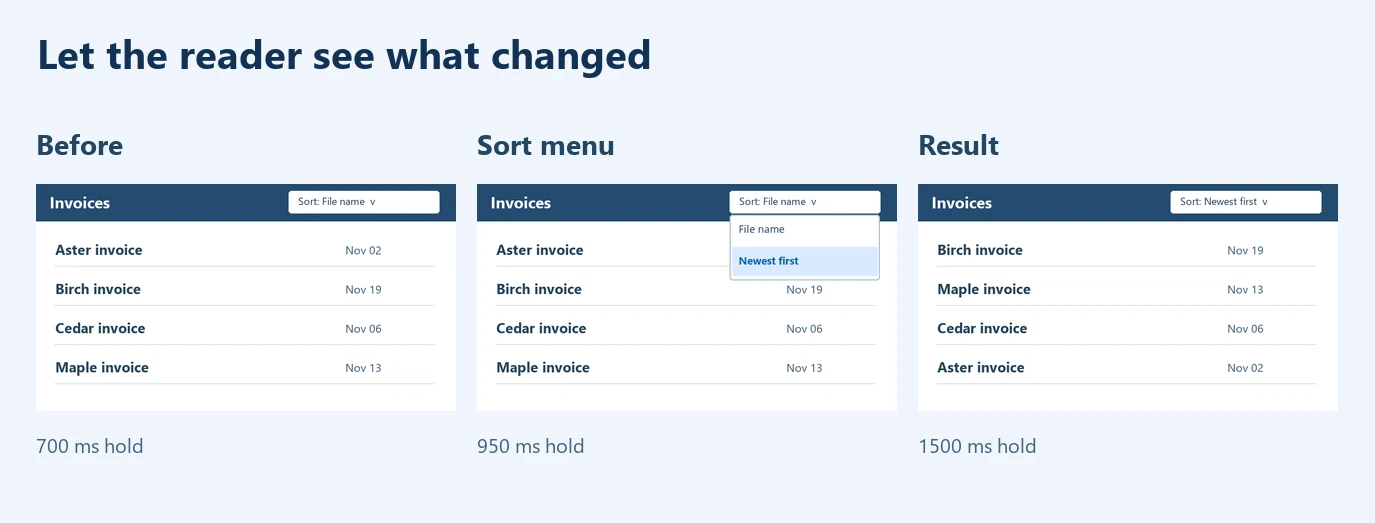
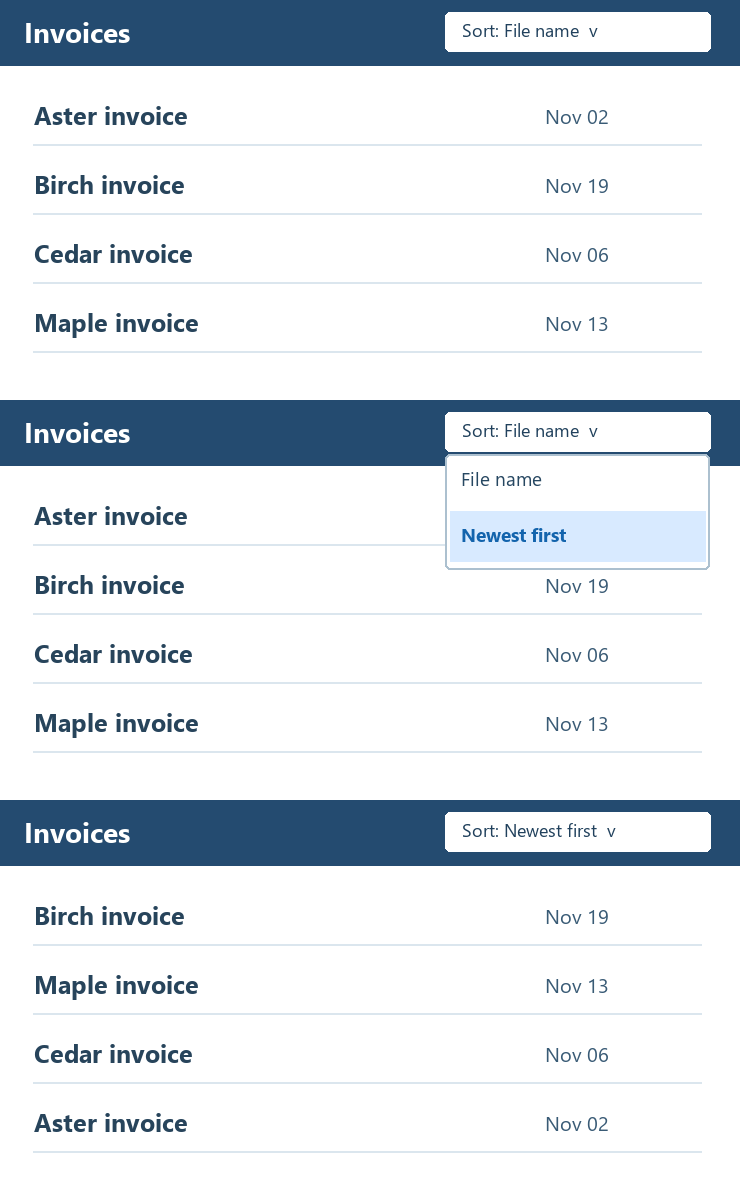
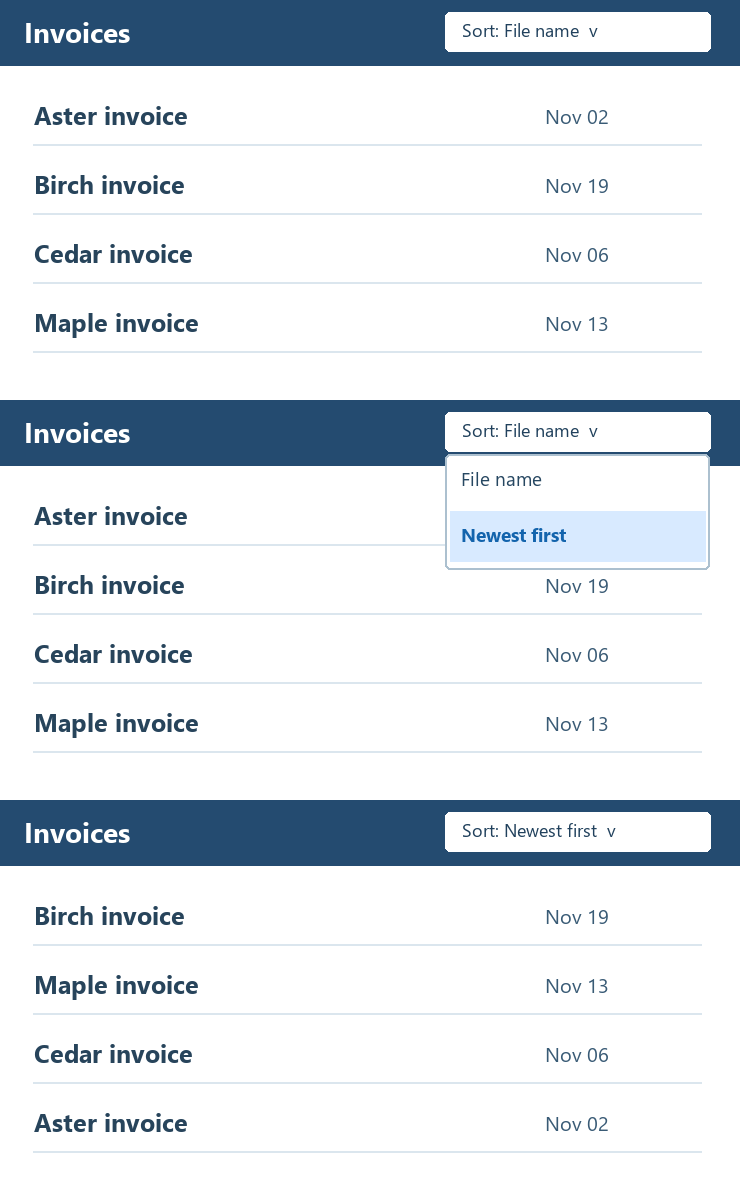
The practice list begins with Aster invoice, dated Nov 02. The middle frame opens the sorting menu. The last frame puts Birch invoice, dated Nov 19, at the top. A reader who only remembers that the list moved has missed the outcome. Ask two concrete questions after one loop: which option was chosen, and which invoice moved to the top?
| Frame | Even timing | Result held longer |
|---|---|---|
| List before the sort | 1,050 ms | 700 ms |
| Menu showing Newest first | 1,050 ms | 950 ms |
| Birch invoice at the top | 1,050 ms | 1,500 ms |
We decoded both 740 × 400 files and checked the stored frame delays. Each has three frames and plays for 3,150 ms per loop. The second edit gives the final list another 450 ms without making the tutorial longer. Open the evenly timed GIF and the result-focused GIF separately. Keep the display width the same.
Rebuild the timing from the even version
Open the even version in the editor. Select only the first thumbnail and set its delay to 700 milliseconds. Repeat on the menu and final thumbnails using the right-hand column above. Use the control that sets the delay to a value. An adjustment that adds 700 milliseconds to the existing delay leaves a much longer pause. Revisit each thumbnail before exporting to a new filename.
Watch the exported file at the width of a support ticket on a phone. If the reader sees Birch but cannot name the menu option, move 200 ms from the last frame to the menu and try again. If neither name is readable when paused, change the capture region or text size. Extra delay cannot recover lettering lost when the image is scaled down.
Write the instruction that survives a paused animation
A support reply can include the sentence “Choose Newest first; Birch invoice (Nov 19) moves above Maple invoice (Nov 13).” That gives the reader a way to check the result even when their mail client shows only the first frame. Keep the still frame strip below for readers who prefer a stationary example.
For your own recording, capture both the date column and the top two rows. Cropping to the menu alone makes the click legible but hides the evidence that the sort worked. If the list never visibly changes, check that the starting sort actually differs from the requested one before recording another take.
Field tip
A single held frame is enough to show a stationary result. Add time to that frame instead of retaining a second of identical captures. Put the essential instruction in nearby text as well so readers can follow it without watching the loop.
Where it falls short
GIF is a poor choice for color-rich footage or long walks through several menus. Split a multi-step explanation into independent clips or use a video with playback controls.
Try it yourself
Make a three-beat clip for sorting four sample invoices. Show the unsorted names, the selected sort choice, and the newest invoice at the top. Ask a reader to point to the newest invoice after a single loop. If they miss it, increase the final hold before adding arrows.
Download practice file · GIF ↓